Creating an Account
Go to the Login Page:
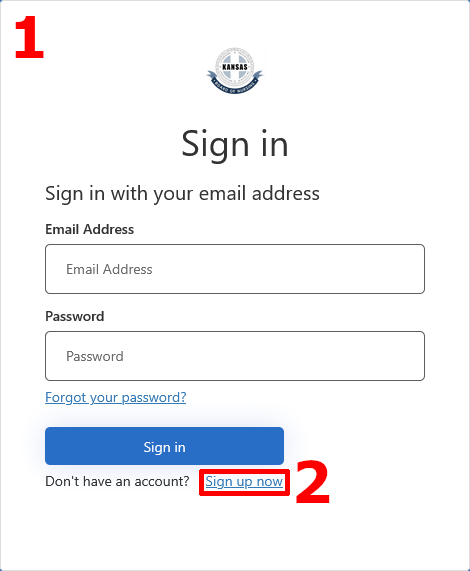
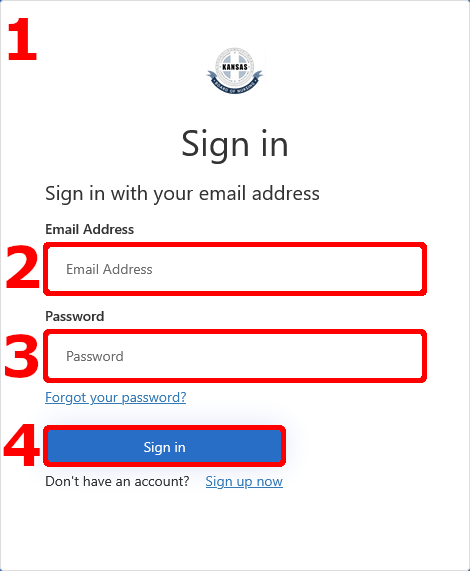
- Go to the My Portal Sign In Page.
- Press the ‘Sign up now’ link at the bottom, under the blue ‘Sign in’ button.
Register E-Mail Address for Multi-Factor Authentication:
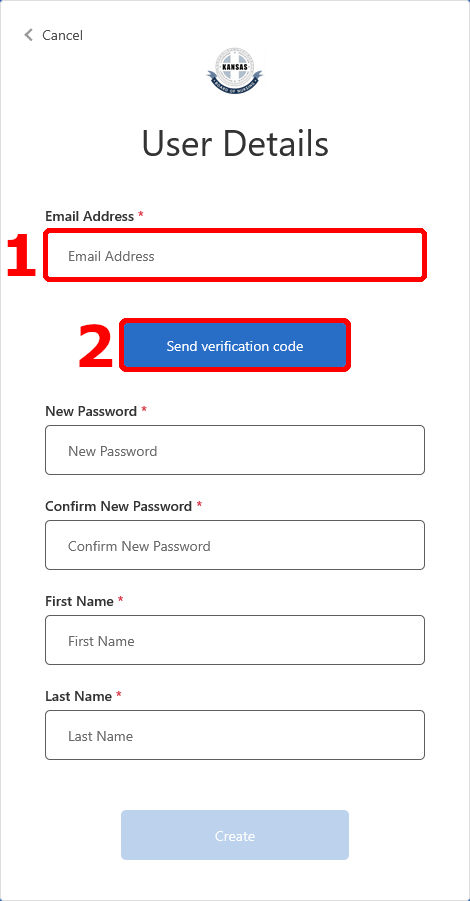
- Enter the E-Mail address that you wish to associate with your portal account.
- Make sure to use a personal email that you can access beyond schooling/employment.
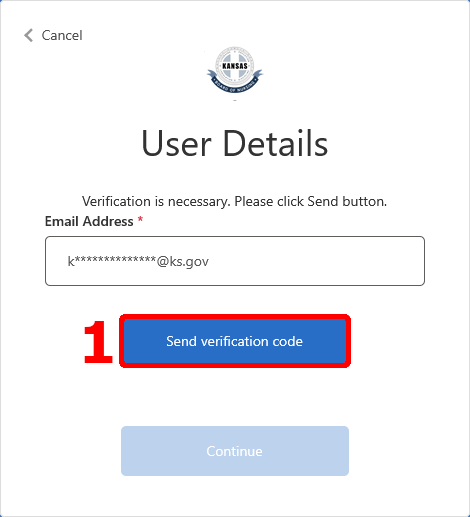
- Once an email address has been typed into the box, press the ‘Send verification code’ button.
Verify E-Mail Address for Multi-Factor Authentication:
- Check the E-Mail you typed in for a one-time code.
- This E-Mail may take a moment to arrive.
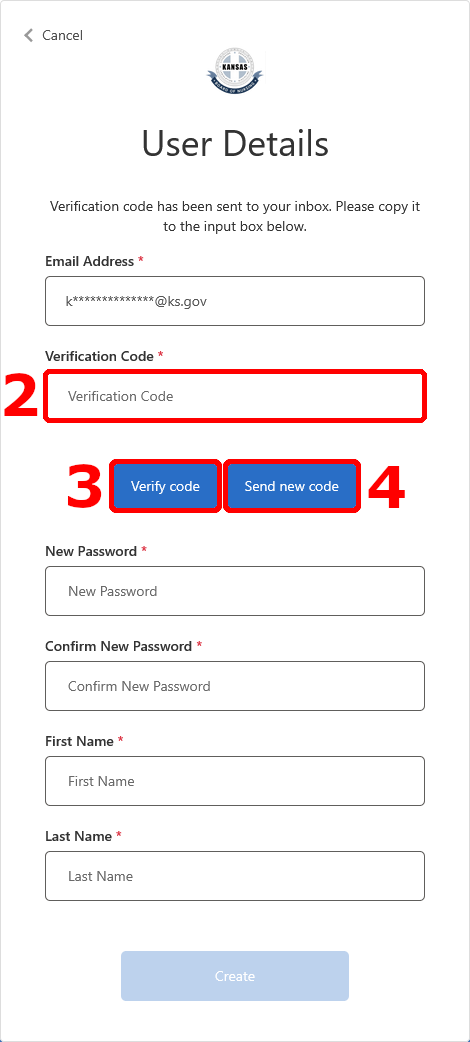
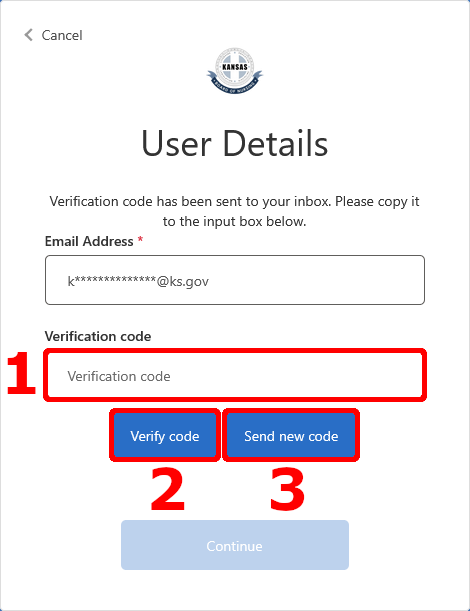
- Copy that code into the new box that appeared under the email address, labeled ‘Verification Code’.
- Press the ‘Verify code’ button to finish verifying your email address.
- Optionally, you can send a new code to try again with the ‘Send new code’ button.
Create Password:
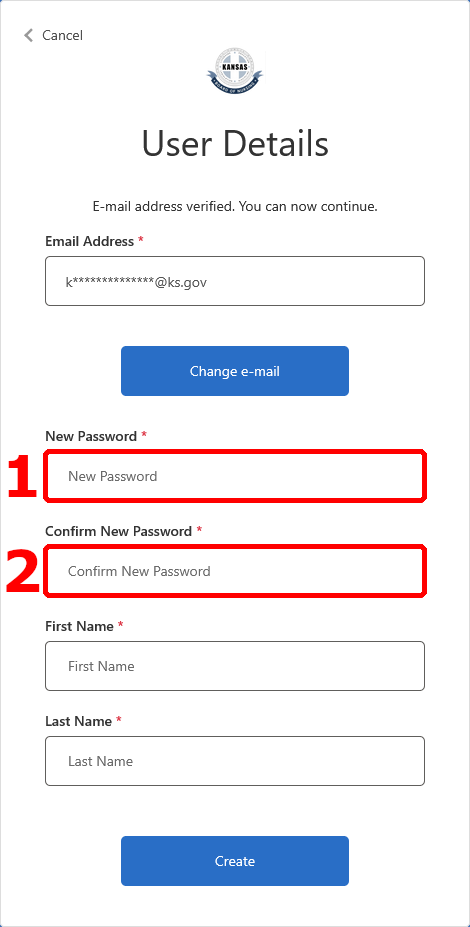
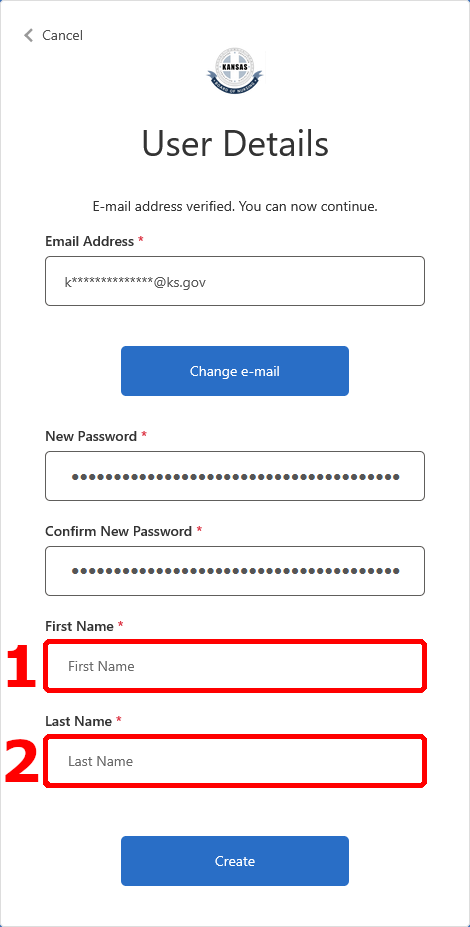
- Create a strong password for your portal account.
- Passwords must be 15 characters or longer.
- Passwords must contain at least one upper case letter.
- Passwords must contain at least one lower case letter.
- Passwords must contain at least one number.
- Passwords must contain at least one special character.
- Type the same password again into the box below.
Enter Legal Name:
- Enter your legal first name.
- Enter your legal last name.
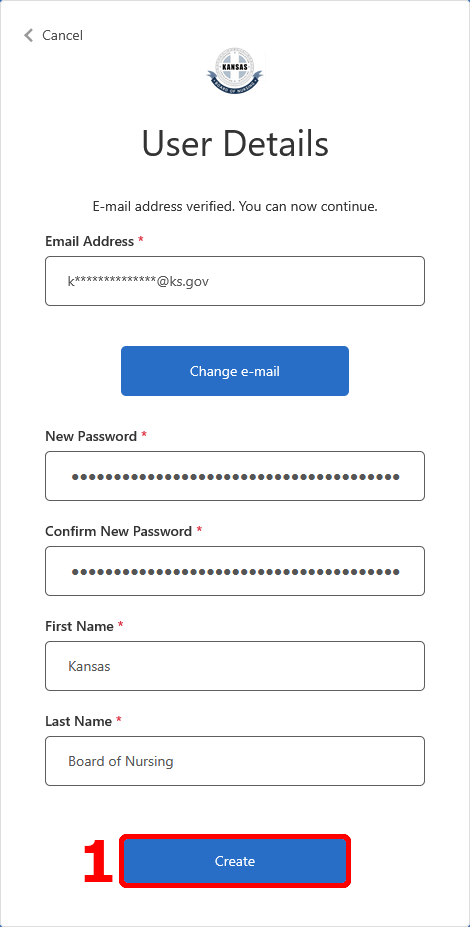
Finish Creating Account:
- Once verified and everything is filled out, press the ‘Create’ button at the bottom to finish creating your account.
Send Multi-Factor Login Code:
- Press the ‘Send verification code’ button.
- Check the email associated with your account for the one-time-code.
- This E-Mail may take a moment to arrive.
Verify Multi-Factor Login Code:
- Copy that code into the new box that appeared under the email address, labeled ‘Verification Code’.
- Press the ‘Verify code’ button to finish verifying your email address.
- Optionally, you can send a new code to try again with the ‘Send new code’ button.
Finish Multi-Factor Authentication:
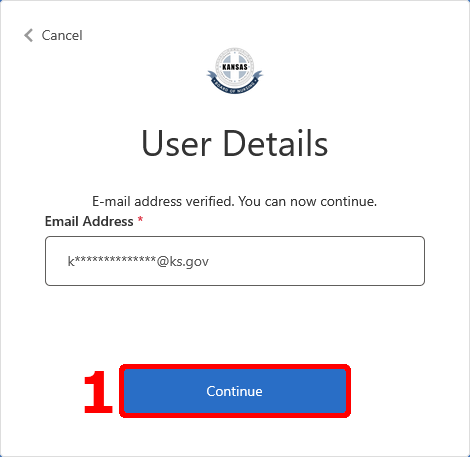
- Once verified, you can press the ‘Continue’ button at the bottom.
- You should now be successfully logged in to your account.
Connect Your Licenses to Your Account
Initiate License Linking:
- Login to the portal.
- If you need help with this, please see the guide about logging in.
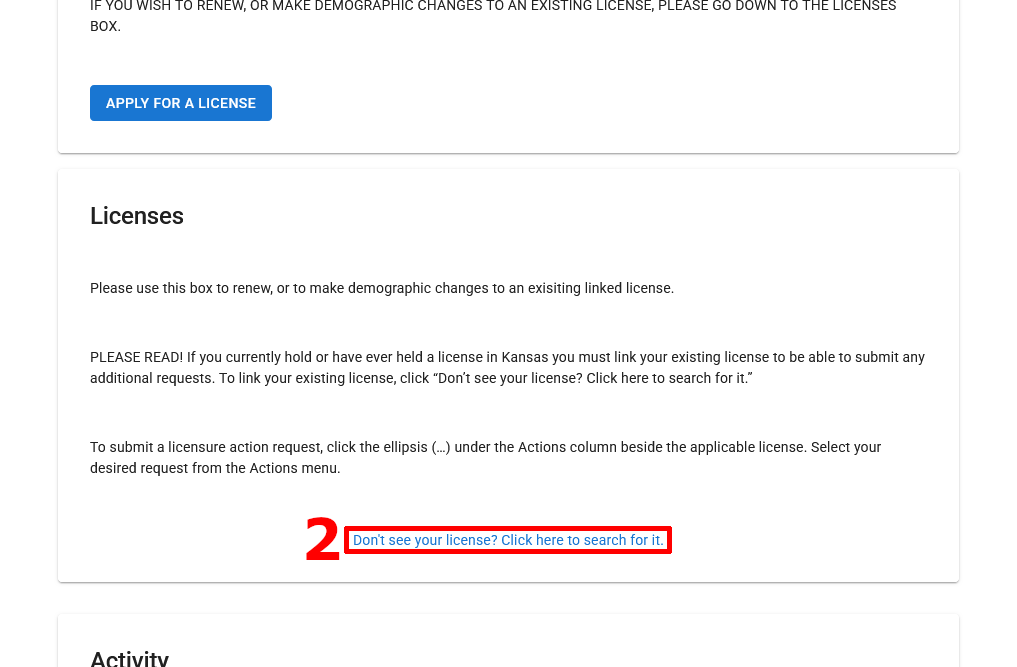
- Scroll down to the bottom of the ‘Licenses’ panel and select the ‘Don’t see your license? Click here to search for it.’ link.
Find Your Licenses:
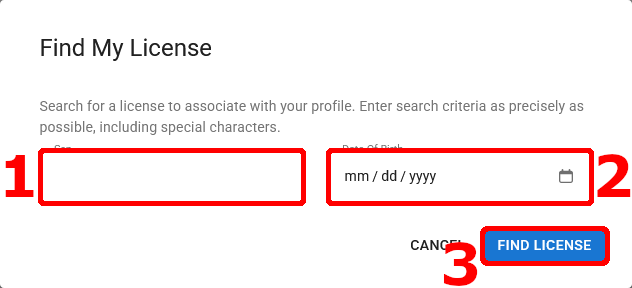
- Enter your Social Security Number (SSN).
- Enter your date of birth.
- Press the ‘Find License’ button at the bottom right.
Verify Linking Success:
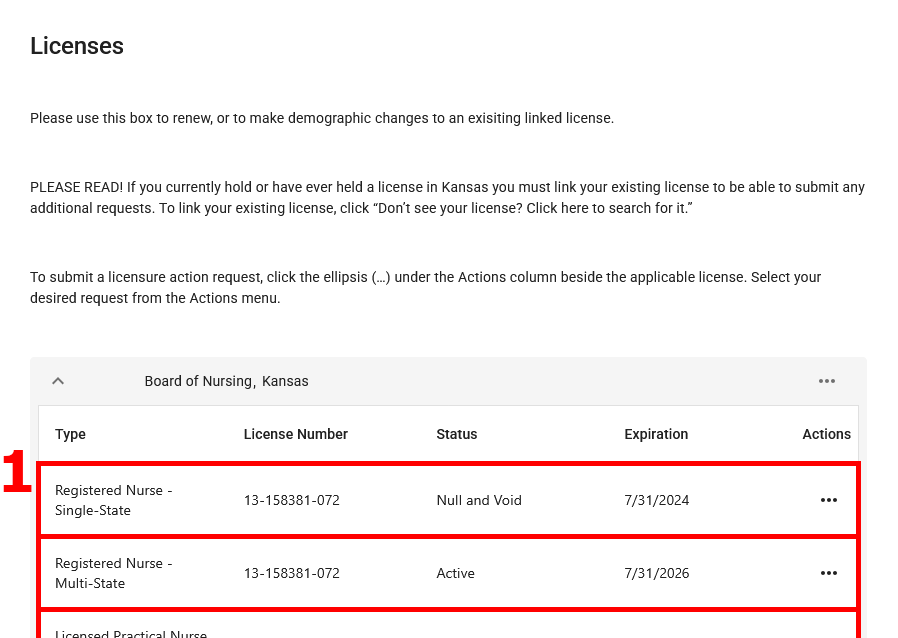
- Your licenses should show up in the table on the ‘Licenses’ panel.
Resetting My Login
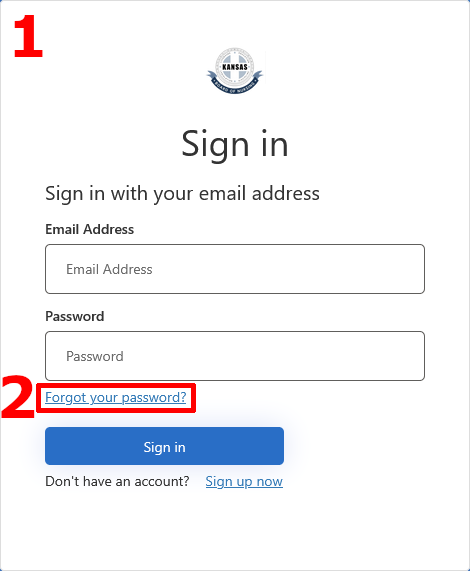
Go to the Login Page:
- Go to the My Portal Sign In Page.
- Press the ‘Forgot your password?’ link in between the password box and the blue ‘Sign in’ button.
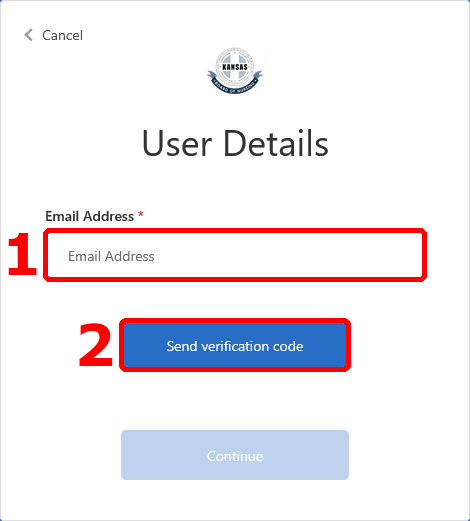
Send Multi-Factor Code:
- Enter the email associated with your portal account.
- Press the ‘Send verification code’ button.
- Check the email associated with your account for the one-time-code.
- This E-Mail may take a moment to arrive.
Verify Multi-Factor Code:
- Copy that code into the new box that appeared under the email address, labeled ‘Verification Code’.
- Press the ‘Verify code’ button to finish verifying your email address.
- Optionally, you can send a new code to try again with the ‘Send new code’ button.
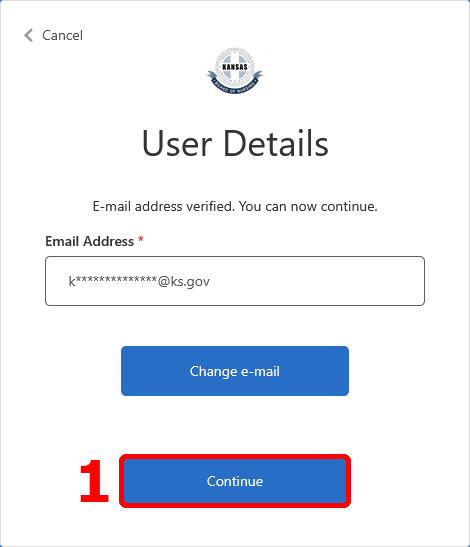
Finish Multi-Factor Authentication:
- Once verified, press the ‘Continue’ button at the bottom to continue to the password reset.
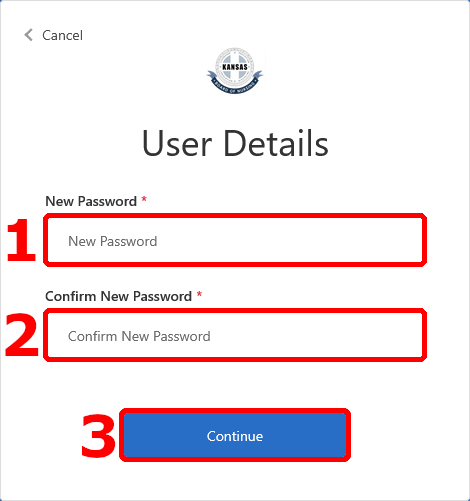
Create a New Password:
- You will be prompted to reset a new password.
- Passwords must be 15 characters or longer.
- Passwords must contain at least one upper case letter.
- Passwords must contain at least one lower case letter.
- Passwords must contain at least one number.
- Passwords must contain at least one special character.
- Type the same password again into the box below.
- Press the ‘Continue’ button at the bottom to finish setting your new password.
- You will be logged in automatically at this point.
Logging In
Sign In:
- Go to the My Portal Sign In Page.
- Enter the email that you logind your account with.
- Enter the password that you set for this account.
- Press the blue ‘Sign in’ button at the bottom of the panel.
Send Multi-Factor Code:
- Press the ‘Send verification code’ button.
- Check the email associated with your account for the one-time-code.
- This E-Mail may take a moment to arrive.
Verify Multi-Factor Code:
- Copy that code into the new box that appeared under the email address, labeled ‘Verification Code’.
- Press the ‘Verify code’ button to finish verifying your email address.
- Optionally, you can send a new code to try again with the ‘Send new code’ button.
Finish Multi-Factor Authentication:
- Once verified, you can press the ‘Continue’ button at the bottom.
- You should now be successfully logged in to your account.